

When I talk to teams about inbound email, I hear the same thing over and over. They do not mind wiring up an endpoint. They do not mind inspecting payloads. They do mind the setup work that appears before any of that value shows up. A project starts with a simple goal - receive email events inside the app - and then the first hour disappears into mailbox details, provider choices, and questions that feel much closer to infrastructure than product work.
That gap is exactly what I wanted to narrow in this release.
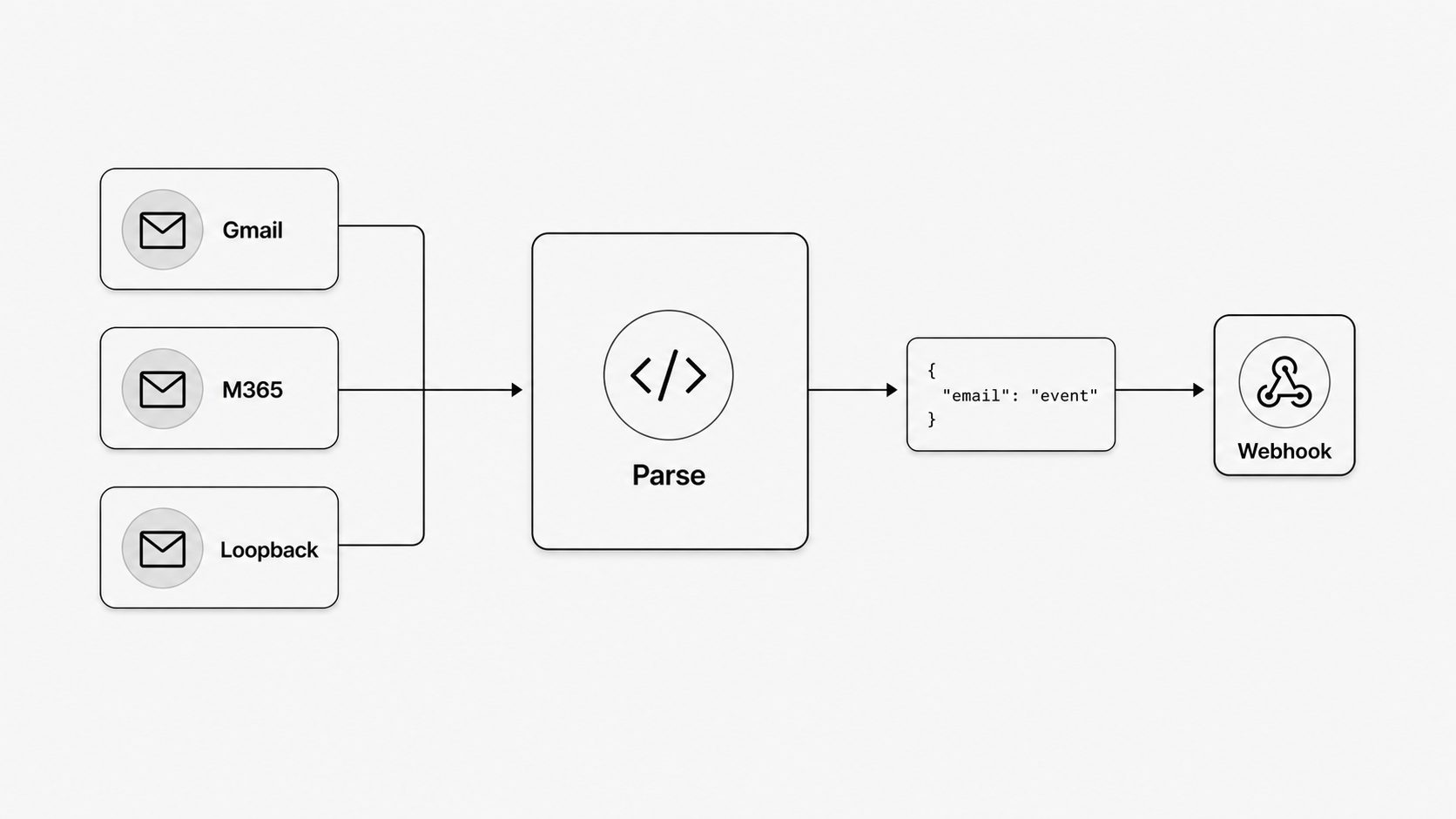
Our March 2026 update makes MailWebhook much easier to connect to the systems teams already use every day. Gmail is now a native mailbox option. Microsoft 365, Office 365, and Outlook mailbox workflows now have a native Microsoft connection path. We also added a loopback mailbox type so new users can send a real email through the platform before they settle on a long-term mailbox.
Why did I group these together in one release? Because they solve the same business problem from three angles. Gmail reduces setup for Google-based teams. Microsoft 365 reduces setup for Microsoft-based teams. Loopback reduces setup for everyone who wants proof before they commit. The common thread is simple: less mailbox friction, faster time to working payloads.
So why did we make this change now?
I have seen a lot of teams reach the same point in the onboarding flow. They understand the product. They know where they want the webhook to go. They are ready to test. Then the mailbox step slows them down.
Sometimes the slowdown is technical. A team has to find the right mailbox settings, confirm access, and work through a setup path that feels separate from the workflow they actually care about. Sometimes the slowdown is organizational. One person owns the app, another owns email, and nobody wants a long setup cycle just to prove a webhook works. In both cases, the delay lands in the same place: the team still wants email events, yet they are spending energy on connection mechanics.
I wanted to change that. MailWebhook should help teams get to working payloads fast. That sounds obvious, but it matters. Inbound email projects usually start because a team wants to automate support, approvals, alerts, invoices, or customer operations. They want to route messages into software, not open a side project around mailbox plumbing.
This release moves the product closer to that goal in a practical way.
For Google-based teams, there is now a clean Gmail path. For Microsoft-based teams, there is now a clean Microsoft 365 path. For new users who want to test first, there is now a temporary loopback mailbox that can receive a real message right away. Each option removes a different piece of friction, and together they create a smoother path from “we should try this” to “we already have email hitting our endpoint.”
You might be wondering: does this really matter if the old flow still worked? I think it does. Working is one bar. Fast, clear, and easy to trust is a higher bar. When a setup flow feels natural, teams move sooner, learn faster, and make better decisions about where they want to go next. That is especially true for technical leaders. They often need to validate the path before they ask a broader team to adopt it. A clean mailbox connection makes that conversation much easier.
There is another benefit here too. Native choices help users think in provider terms they already know. Gmail users can choose Gmail. Microsoft 365 users can choose Microsoft 365. New users can start with loopback. That clarity reduces hesitation. It also makes MailWebhook feel closer to the real environment the customer is already working in.
What changes for teams already in Gmail?
Gmail is now a first-class mailbox option in MailWebhook, and I expect this to help a wide range of teams right away.
I have noticed that many fast-moving companies already run important workflows through Gmail or Google Workspace. Shared inboxes support customers. Alerts reach operations teams. Receipts and reports land in a finance mailbox. Approval emails move between people who need a clear record and a fast action path. When those messages already live in Gmail, the most natural next step is to turn that mailbox into an event source for internal tools.
That is what this release is built to support.
The setup flow is straightforward:
- Open the mailbox flow from the Mailboxes page or onboarding.
- Choose
Gmail. - Click
Connect with Google. - Complete the Google authorization flow.
- Optionally set a Gmail label if you want MailWebhook to watch a narrower slice of messages.
That last point matters more than it may seem. A lot of teams do not want to send an entire mailbox into one workflow. They want a label, a subset, or a controlled stream that matches how the business actually works. Gmail labels give teams a clean way to focus the connection without asking them to redesign their inbox habits first.
Here are a few cases where I think Gmail is a strong fit:
- Shared support inboxes that need to feed internal systems
- Team mailboxes that should trigger webhook-based workflows
- Finance or operations inboxes that receive recurring reports, receipts, or approvals
- Quick prototypes where the source mailbox already lives in Gmail
You might ask: who benefits most from this? I would point to technical leaders who want a fast path to proof. If your company already trusts Google for mail, you can now connect in a way that feels familiar. The mailbox step becomes much closer to the sign-in flows developers already expect from modern integrations. That lowers the amount of setup context a team has to carry before it sees real payloads.
I also like what this does for cross-functional teams. A product lead, engineer, and operations owner can walk through the same connection flow and understand what is happening. That sounds small, yet it matters during onboarding. Clear setup flows reduce the chance that a project stalls while one person translates mailbox terms for everyone else.
For Google-based teams, this is now the fastest path from an existing inbox to live MailWebhook events. If your workflows already run through Gmail, you can connect the source where it already lives and move quickly into routing, payload review, and delivery testing.
Teams evaluating the public commercial path can use Gmail to webhook as the core site overview for this workflow.
And what if your mailbox lives in Microsoft 365, Office 365, or Outlook?
Microsoft support is the other big piece of this release, and for many organizations it may be the most important one.
Current note: MailWebhook supports Microsoft 365, Office 365, and Outlook mailbox workflows broadly. This release note describes the March 2026 launch path for the native Microsoft mailbox connection.
I have worked with enough teams to know that Microsoft environments come with their own shape. A team may run customer-facing communication through Outlook mailboxes. Billing may sit in one mailbox. Support may sit in another. A shared mailbox may serve as the real workflow hub, even when the person connecting it is signed into a different account. In that world, a generic mailbox flow creates extra work because the user has to translate their Microsoft setup into something more abstract before they can move forward.
This release makes the flow much more direct.
Users can now:
- Open the mailbox flow from the Mailboxes page or onboarding.
- Choose
Microsoft 365. - Click
Connect with Microsoft 365. - Select the folder they want MailWebhook to monitor.
- Optionally enter a shared mailbox email if the target is not the primary inbox.
- Finish the Microsoft authorization flow.
There are two parts of that experience I especially care about.
The first is folder selection. Many Microsoft 365 teams do not want a full mailbox watch. They want a specific operational folder that maps to one process, one department, or one handoff point. Folder-level selection makes the routing model clearer from day one. A team can keep its mailbox structure and connect the exact place where the workflow starts.
The second is shared mailbox support. This is a common real-world need. Plenty of companies route customer or back-office work through addresses like support@, billing@, or invoices@. Those inboxes are often shared across teams, and they are often the right source for automation. Letting users specify a shared mailbox email brings the product much closer to how Microsoft organizations actually work.
Good fits here include:
- Microsoft 365, Office 365, or Outlook inboxes tied to important workflows
- Shared mailboxes for support, billing, finance, or approvals
- Teams that want to monitor one folder rather than the whole mailbox
- Organizations that want a provider-native path that feels clear to both admins and developers
You might be wondering whether this is mostly an enterprise feature. I do not think of it that way. It helps enterprises, yes, but it also helps any Microsoft-based team that wants a cleaner first run. The value is not just scale. The value is fit. When the setup matches the provider and the mailbox model people already use, the product feels easier to adopt and easier to explain internally.
For teams built around Microsoft 365, Office 365, or Outlook mailboxes, this update should remove a lot of unnecessary friction between the inbox they already trust and the event stream they want to build on top of it.
Teams evaluating this provider path can use Microsoft 365 email to webhook for the core site overview.
Want to prove the flow first and choose the mailbox later?
I kept loopback smaller in the product story, yet I think it plays an important role in time-to-value.
When someone starts with MailWebhook, the first question is often simple: “Will my endpoint receive the payload I expect?” That is a fair question. Before a team debates mailbox ownership, provider choice, or long-term routing rules, it usually wants a quick proof that the end-to-end path works.
That is exactly where loopback helps.
In onboarding, MailWebhook can create a temporary mailbox with a memorable address. A user can keep the default Test loopback endpoint or switch to their own endpoint, Slack, or Telegram target. Then they send a real test email, inspect the payload preview, and confirm delivery behavior. The whole flow stays close to the actual product experience, which is what makes it useful. This is real email moving through a real route.
Loopback is temporary by design. It stays outside normal mailbox lists, and it does not count against regular mailbox limits. I see it as a fast starting point rather than a destination. Its job is to reduce hesitation and help users move from curiosity to confidence.
That creates a practical progression for new teams:
- Start with loopback and verify the full route.
- Move to Gmail if the source mailbox already lives in Google Workspace.
- Move to the Microsoft connection path if the source mailbox already lives in Microsoft 365, Office 365, or Outlook.
This is the shape I wanted for the release. First, give users a way to test fast. Then, give them provider-native paths for the real mailbox they already use every day. That progression keeps setup aligned with the actual decision a team is making at each step.
If your team has been waiting for a lower-friction way to get email into MailWebhook, this update is for you. Try the mailbox flow, run a real message through it, and see how quickly you can get from inbox to payload. I would love to hear where Gmail or Microsoft mailbox support now fits into your workflow.